14282
  • LOGIN
  • Hebrew 
MRCLAB-Laboratory Instrumentsעברית
    • laboratory equipment
    • Laboratory Balances
    • Measuring Instruments
    • material testing
    1. home page
    2. Blogs
    3. How To Use Digital Microscopes?

    How To Use Digital Microscopes?

    To use a digital microscope, first, connect it to a computer or device with a USB cable. Next, install any necessary software or drivers for the microscope. Once the microscope is connected and set up, open the software and adjust the settings, such as resolution and magnification, as desired. Place the item you want to view on the microscope stage and adjust the focus using the focus knobs or buttons on the microscope or software. You can also take pictures or videos of the specimen using the software.

    Operating Instructions

    Here are some general operating instructions for using a digital microscope:

    Connect the microscope to a computer or device using a USB cable.

    Install any necessary software or drivers for the microscope, as directed by the manufacturer.

    Open the software and adjust the settings, such as resolution and magnification, as desired.

    Place the specimen on the microscope stage and adjust the focus using the focus knobs or buttons on the microscope or software.

    Use the software to take pictures or videos of the specimen, if desired.

    To change the magnification, you can use the software or the physical zoom button on the microscope if it has one

    To adjust the focus, use the focus knob or buttons on the microscope or software.

    To move the stage, use the stage control knob or buttons on the microscope or software.

    To adjust the lighting, use the lighting control knob or buttons on the microscope or software.

    Always consult the manufacturer's instructions for specific details on operating your particular microscope.
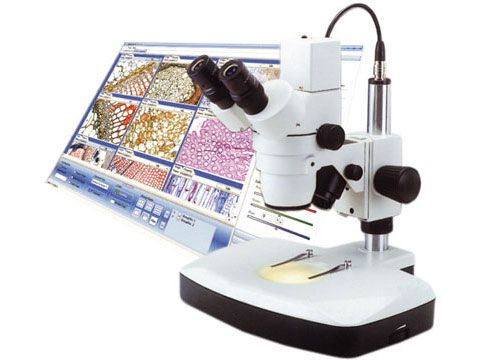
    HOW TO USE DIGITAL MICROSCOPES?

    blogs

    Blogs

    ABOUT US

    About us

    CONTACT US

    Contact us

    SERVICE CENTER

    Service center

    • About
    • |
    • Products
    • |
    • Catalogs
    • |
    • Support
    • |
    • Service center
    • |
    • Customers
    • |
    • Terms
    • |
    • Privacy Policy
    • |
    • FAQ
    • |
    • Blogs

    [email protected], + 972-3-5595252
    ISRAEL: Hagavish 3 Holon
    UK: Cavendish House Parkway, Harlow Business Park, Harlow, CM19 5QF

    • Bsmart בניית אתרים
    • SAP
    altImg

    • Fully Supported on Chromee*
    • Color Blind Adjusted
    • Heavy Vision Adjusted
    • Regular Display
    • Access Keys MenuAlt + 0
    • Stop Motion
    • Remove Underline Links
    • Press Keys For View Resize
    • Ctrl + Larger
    • Ctrl - Smaller
    • Ctrl 0 Reset Size
    • Enable Disable Keyboard Focusing
    • Reset All To Defualt

    Access Keys

    • Enable/Disable This MenuAlt + 0
    • Skip To Main MenuAlt + 1
    • Skip To Main ContentAlt + 2
    • דלג למפת אתר מונגשת Alt + Shift + 3
    • SearchAlt + 4
    • Contact PageAlt + 7
    • דלג למפת העמוד Alt+5
    • Skip To HomepageAlt + h
    • Skip To Accessibilty MenuAlt + m

    *Firefox users: Use Alt + Shiftnumber

    In order to move between elements, Press - Tabkey, To backtrack press, - Shift + Tab

  • Skip To Main Menu
  • Skip To Main Content
  • Skip To Accessbilty Menu
  • This website uses cookies for the purpose of ongoing and proper operation in accordance with the privacy policy